

The Base Selfie Members only8 min
Generate the Base Selfie with FLUX.1
Keyword-style prompting, seed rolling, and LoRA weight tuning: how to get a V1 selfie that actually looks like you before any realism layers go on.
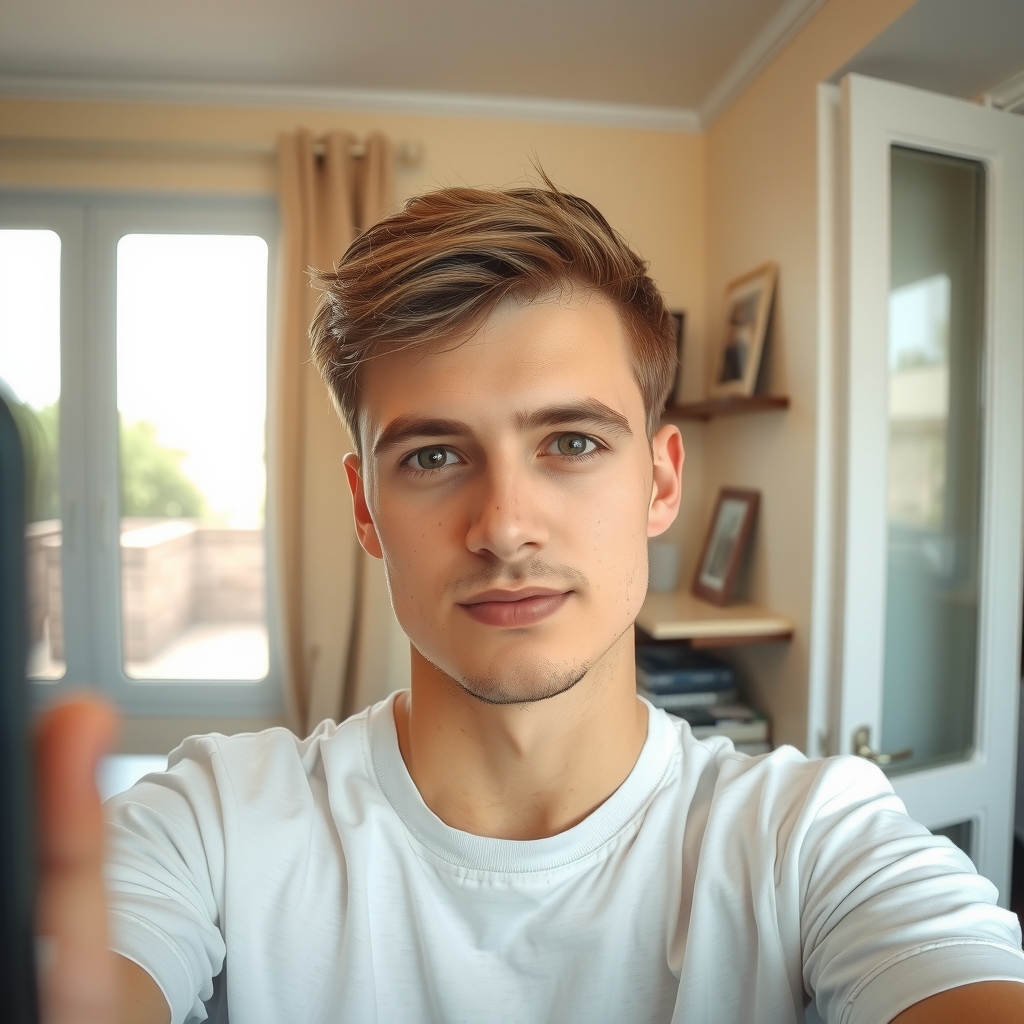
Goal of this lesson: one image — call it V1 — that looks like you, dressed how you want, framed how you want. Realism comes later; identity comes first.
Step by step:
- Open the FLUX.1 with LoRAs playground in Text to Image mode.
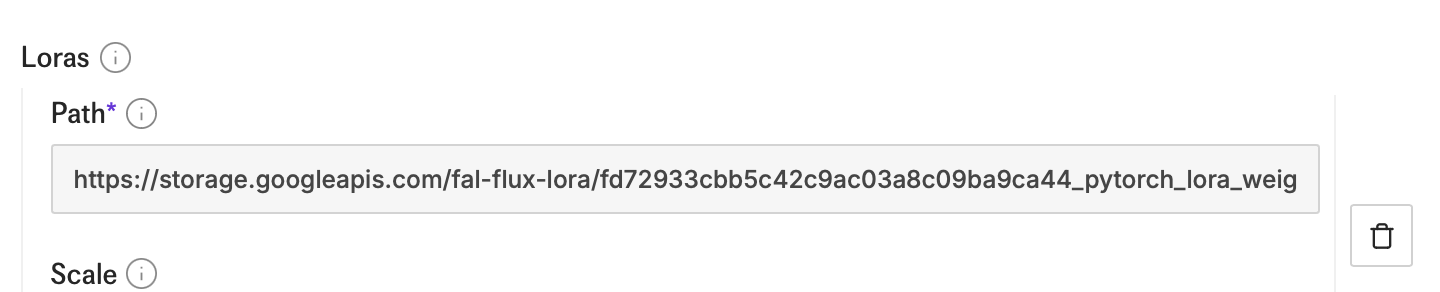
- Under Loras, paste the link to your Digital Avatar LoRA.
- Write a short, keyword-style prompt. The working example: A selfie of [your trigger word], buzz cut, short hair, white shirt, shot on an iPhone, IMG_1018.HEIC, iPhone photo.
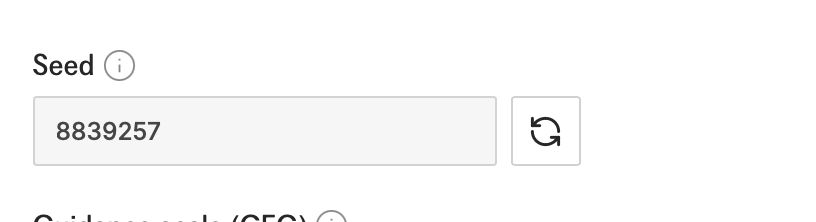
- Hit randomize on the Seed field, then Generate.
- Not you, or wrong outfit? Randomize the seed and go again. Still not you after several rolls? Nudge the Avatar LoRA weight up or down by 0.1 and retry.
- When an image lands, write down its seed. A fixed seed is what lets you add the realism LoRAs in the next section without the whole composition changing underneath you.
Why keywords beat prose here: a short prompt concentrates the model's attention on your face and clothing instead of spending it on background detail. Long flowery prompts come back in the editorial pack — for the base selfie, terse wins.